
How ThunderHarbor Works: Where to Go for Every Common Task
ThunderHarbor has around 20 tabs, and they are not 20 separate calculators. They are different views of one shared plan, run through one shared projection. This page goes through what each one actually does, with real screenshots, not summaries. If you already have an account, use it as a map: where do I go to do this specific thing, and what else changes when I do.
If you have not signed up yet, or you are on the free plan wondering what the paywall is actually hiding, this page is for you too. Every screenshot below is the real app, not a mockup. You are looking at what you would actually get.
Everything below is written in plain English on purpose. You should not have to read a complicated chart to understand what a setting does or where a number came from.
Jump to a topic
Why one setting can move numbers on a tab you were not looking at
Almost every tab under Optimize and Analysis runs the same projection against your saved plan. RMD Analyzer, Tax Cliffs, Healthcare, Bucket Strategy, Roth Strategy, and Full Report all call the same engine on the same data. None of them keep a private copy of your numbers, so a setting that changes your projected income changes what every one of them shows.
Why not just build a spreadsheet, or ask an AI chatbot?
That is a fair question, worth answering directly instead of dodging it.
A spreadsheet can do the arithmetic. What it cannot do is keep every rule connected the way this app does. Change your retirement age by one year, and your RMD start age, Social Security claiming math, ACA subsidy years, SEPP eligibility, and Roth conversion room all have to move together, correctly, at the same time. In a spreadsheet, that means trusting every formula you wrote or copied to catch every one of those effects. Most do not. Most retirement spreadsheets are quietly wrong in at least one of these places, with no way to know which one without redoing the math by hand.
An AI chatbot has the opposite problem. It has no memory of your actual numbers between conversations, no persistent model of your accounts, and it is not checking its answer against this year's real IRMAA brackets, ACA subsidy cliffs, or the SECURE 2.0 RMD age table. It is generating a plausible-sounding answer, not running your numbers through tax law.
ThunderHarbor holds your entire situation in one engine. Every account, every tax rule, and every year of your plan feed the same model, kept current with this year's actual numbers. Change one thing on one tab, and everything downstream recalculates together and shows you exactly which other tabs moved and why. That is what you are actually paying for. Not a nicer-looking spreadsheet, a model that cannot quietly drift out of sync with itself.
If your question is not on this page: the Ask button
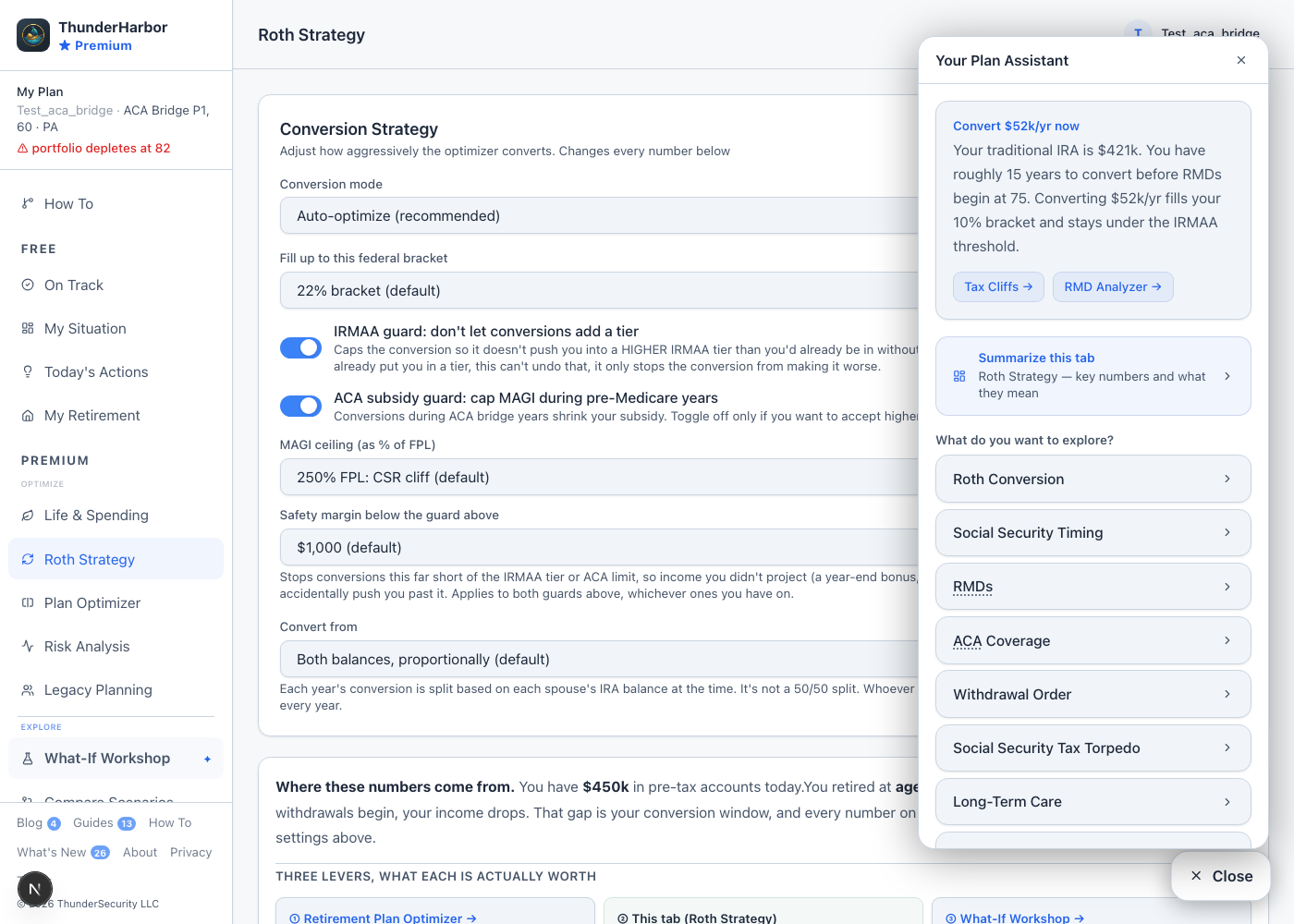
This page can only tell you where things generally live. It cannot look at your actual numbers. Every tab has an Ask button in the bottom right corner that can. Open it and you get two things right away: a short summary of the tab you are currently on, written from your real numbers, and a “Summarize this tab” button that explains the key figures on that screen in plain English. Below that is a list of topics (Roth conversions, Social Security timing, RMDs, withdrawal order, and more) filtered to what is actually relevant to your situation. Pick one, answer a couple of quick questions, and it builds an answer from your saved plan, with direct links to whichever other tabs matter for that answer. Some topics are part of the premium plan; a free account sees which topics exist but gets a shorter teaser instead of the full answer.
Common things people want to do
Convert a specific dollar amount to Roth
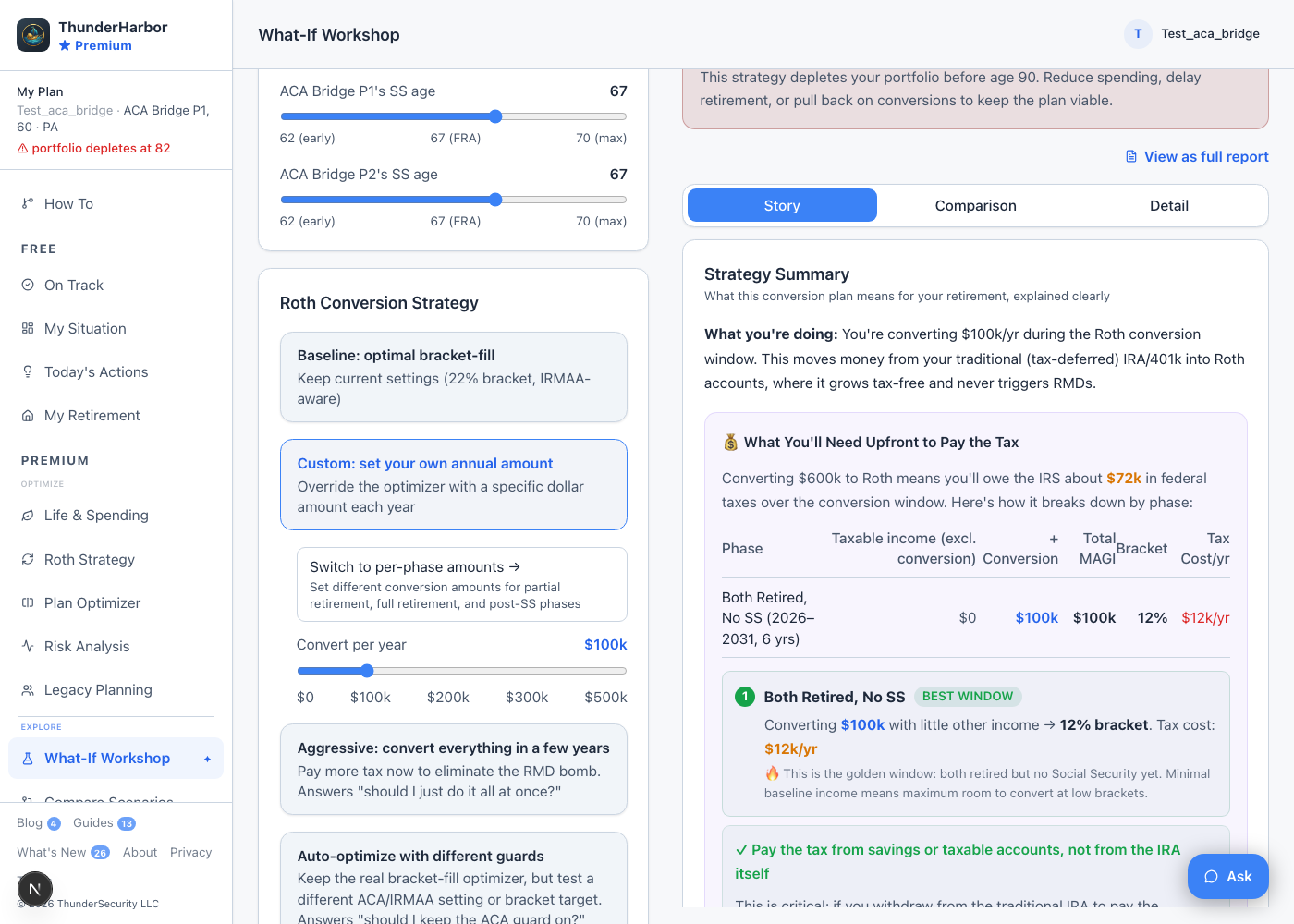
This has two different answers depending on what you actually want, and they are not interchangeable. If you want to test what converting a flat amount every year would do, without touching your real plan, go to What-If Workshop Premium and pick “Custom: set your own annual amount.” Drag the slider to the amount, and it gives you a full breakdown by retirement phase: the tax cost, which phase is your cheapest bracket to convert in, and whether the plan can actually sustain it. Nothing here changes your saved plan until you decide it is worth keeping.
If you want your actual saved plan to convert a specific amount in one specific year, that is a different tool: go to Roth Strategy Premium, set Conversion mode to Manual, then scroll to the Year-by-Year Conversion Planner and type the amount for that year only. One thing to know before you do: a manual amount here is not capped by your ACA or IRMAA guard the way Auto mode is. If $100k pushes you past a cliff, nothing stops it or warns you on this tab. Check Tax Cliffs right after to see the real MAGI impact.
Realize brokerage gains at the 0% federal rate
Go to Roth Strategy Premium and scroll to the Capital Gains Harvesting card, below the conversion planner. It needs the taxable account gain estimate you gave at onboarding. Auto mode sizes a harvest each year after your Roth conversion, since gains stack on top of ordinary income and both levers share the same bracket room, and it respects the same ACA and IRMAA guards. It only recommends a harvest when your own later years would otherwise pay a higher federal rate on that gain; if your income stays low for the whole plan, it says so and recommends nothing, because harvesting would only bring state tax forward. Manual mode runs exactly the amounts you enter. Log what you actually harvested in On Track and next year's recommendation adjusts.
Limit Roth conversions to a specific window of years
By default, Auto mode keeps filling your chosen bracket every year for as long as a traditional balance is left, whether or not RMDs have started. On Roth Strategy Premium, in the same “Conversion Strategy” card, turn on Limit conversions to a specific window to stop that instead after a set number of years, the way a CFP-directed plan often works: convert hard for a few years right after retiring, then let RMDs happen on their own. Start and stop are calendar years, not either spouse's age, since this is a household decision rather than an individual one.
Leave it at just the window and conversions stop completely once it ends. A second toggle, Keep converting after the window, at a different pace, covers the other common case: keep filling a bracket afterward instead, whatever room RMDs and Social Security leave. It starts at the same bracket as the main setting, adjustable on its own, lower it to back off once RMDs are doing part of the work, or leave it the same to just keep going.
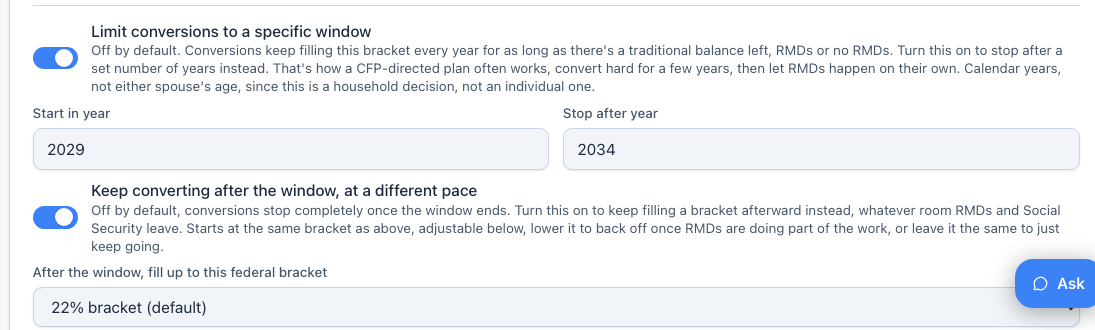
You can try this before committing it to your real plan. What-If Workshop has a matching window and post-window setting under the auto-optimize scenario there, so you can preview the effect first.
Compare withdrawal order without changing your actual plan
The conversion pace table further down Roth Strategy Premium has a toggle above it, Brokerage first versus IRA-first, preserve brokerage. This only changes what the table shows you. It does not touch your actual plan anywhere else. Projection Table, Full Report, and Bucket Strategy keep spending brokerage first regardless of which side you have selected here. IRA-first spends your traditional IRA before touching brokerage, so brokerage can pass to your heirs with a full step-up in cost basis, since the plan never sold it down to cover spending. If you told ThunderHarbor in Life & Spending that leaving a legacy is your biggest concern, the tool calls that option out directly. Otherwise it compares your own numbers under both orders and tells you which one produces lower lifetime taxes for you, since the cheaper order depends on how much you hold in each account type.
Set up your 401k, 403b, or 457(b), and decide the Roth split
Setup happens in Edit Profile, on the Your Money step. A 403b is not tracked as its own account type. It goes in the same Pre-tax 401k/403b Balance field and is treated identically to a 401k everywhere in the engine, limits, RMDs, Rule of 55, taxes, all of it.
A governmental 457(b) is genuinely different, and worth its own toggle rather than being folded into the 401k field. Turn it on in the same step. It has no 10% early-withdrawal penalty at any age once you separate from that employer, unlike a 401k or 403b, so it needs no Rule of 55 and is left out of SEPP planning entirely since it does not need a penalty exception to begin with. Its contribution limit is tracked separately too, so a household can max out a 401k and still contribute to a 457(b) on top of it, not instead of it. If you inherit one, it is handled exactly like an inherited traditional or Roth account, same RMD and 10-year timing. The only difference is cosmetic. The Inherited IRA setup lets you flag it so the app calls it your inherited 457(b) instead of your inherited IRA.
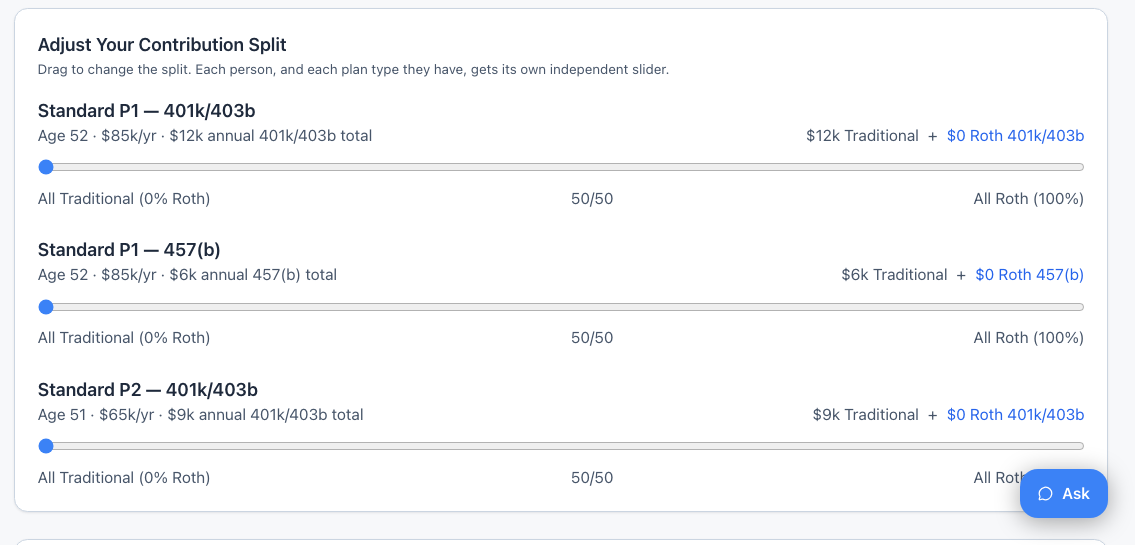
Once both are set up, Plan Optimizer Premium is where you decide how much of each should go to Roth versus pre-tax. It runs your 401k/403b and your 457(b) as two separate sliders per person, since they have separate limits, so you can run a different Roth split on each account instead of one blended number covering all of it.
Roll employer stock out of your 401k separately (NUA)
On the Your Money step in Edit Profile, right after Rule of 55, there is a toggle labeled Move employer stock out separately (NUA). It only shows once a 401k/403b balance is entered, and it only applies to that account, never to a Traditional IRA. This models moving employer stock out of the plan into a regular brokerage account instead of rolling everything into an IRA. You pay ordinary income tax right away, but only on what you actually paid for the stock inside the plan, not what it is worth today. The gap between those two numbers becomes capital-gains basis in your brokerage account, taxed only when you eventually sell.
Enter the stock's current value, what you paid for it, and the year you do the rollover, which defaults to your retirement year. The Projection Table flags that year and shows the tax split. Once the stock is rolled into an IRA instead, this opportunity is gone for good, so only turn it on if you are actually planning the in-kind rollover, not a standard IRA rollover.
Keep your income under an ACA or IRMAA line
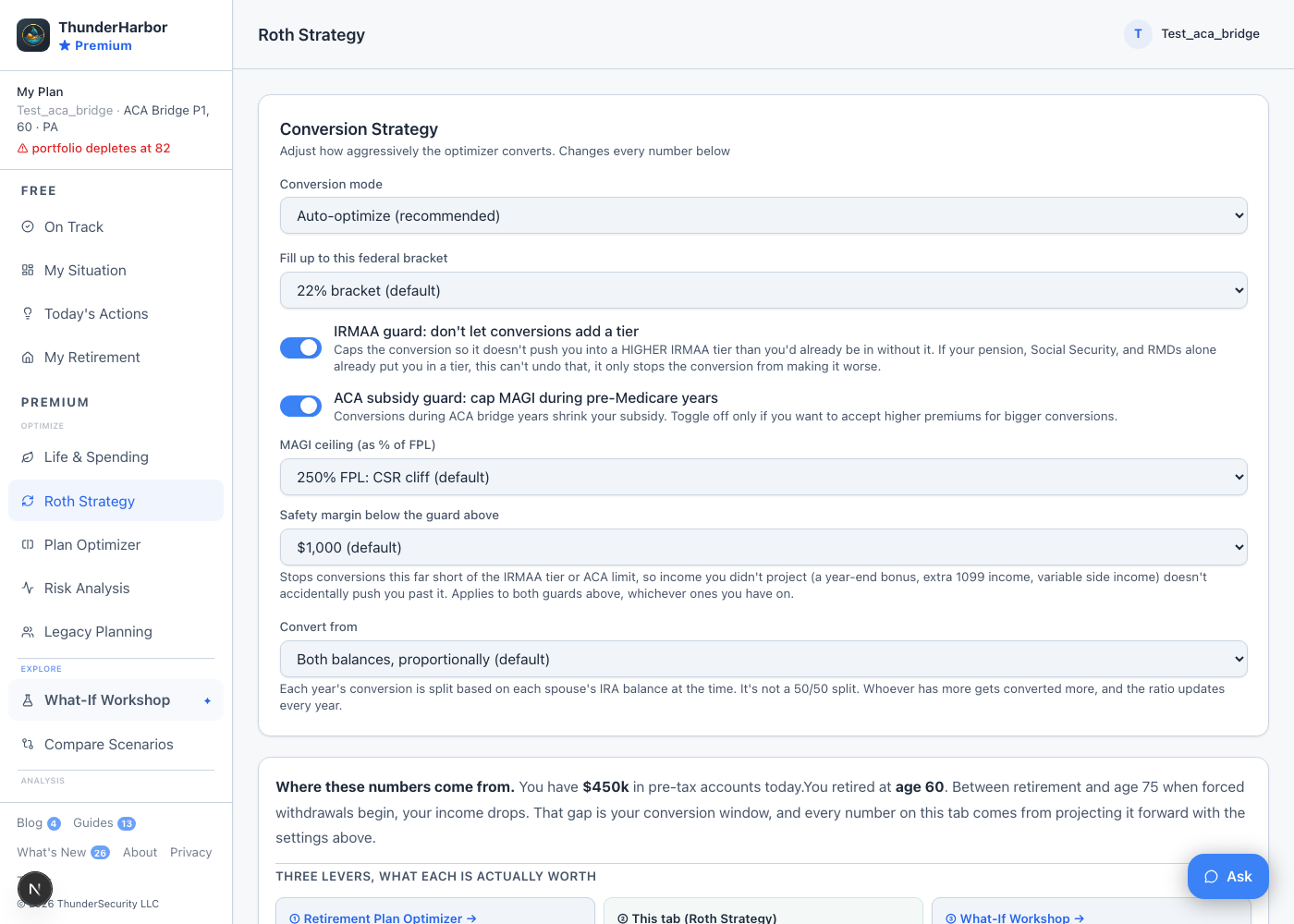
This is the one that trips up the most people. The setting is not on the Healthcare tab. It is on Roth Strategy Premium, in the “Conversion Strategy” card. That is where you turn the ACA guard and IRMAA guard on or off, set your MAGI ceiling as a percent of the federal poverty level, and set a safety margin.
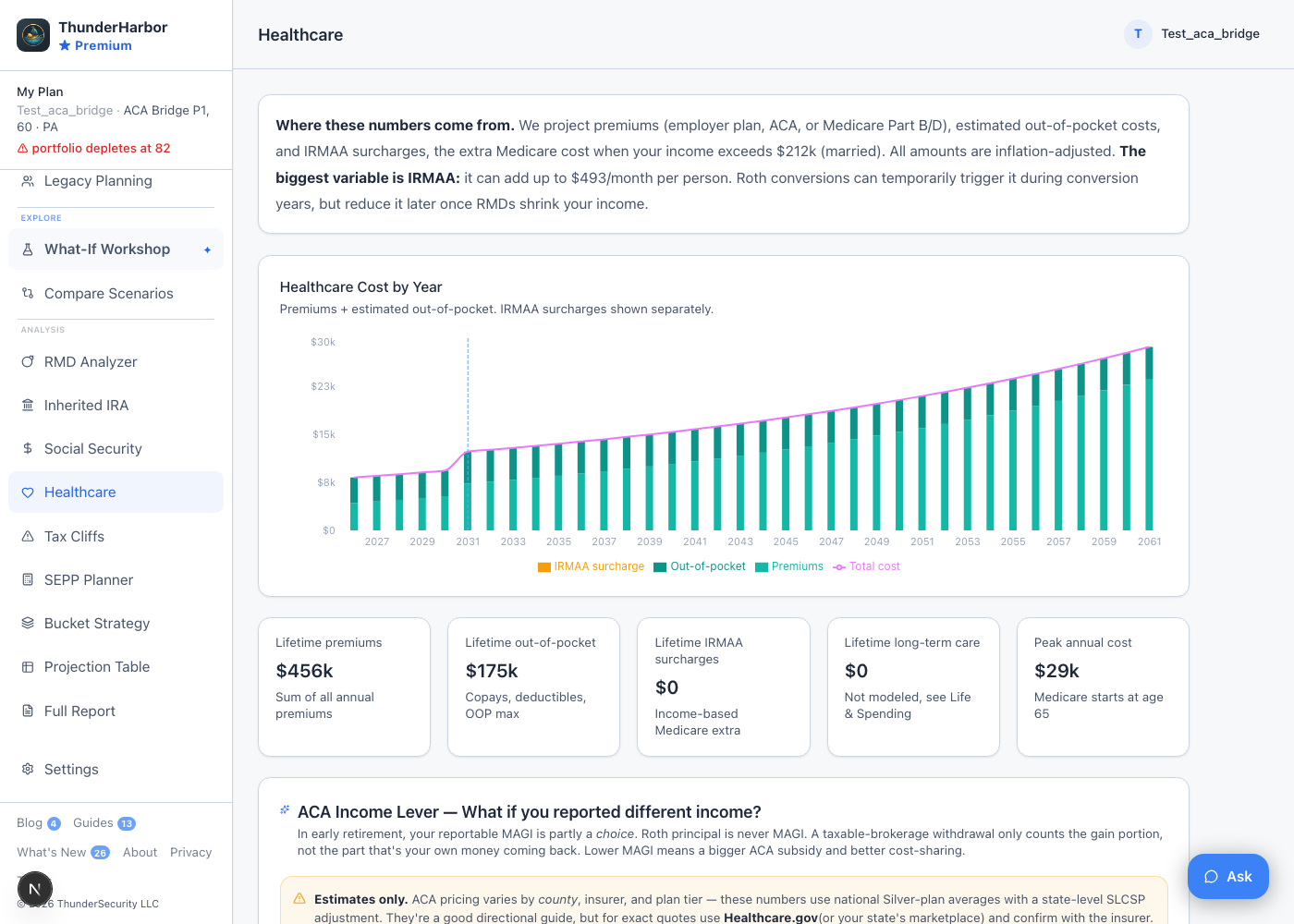
Healthcare shows the result of that setting: your projected MAGI against your ACA and IRMAA tiers, plus a separate read-only slider you can drag to preview a different income level. That slider does not save anything.
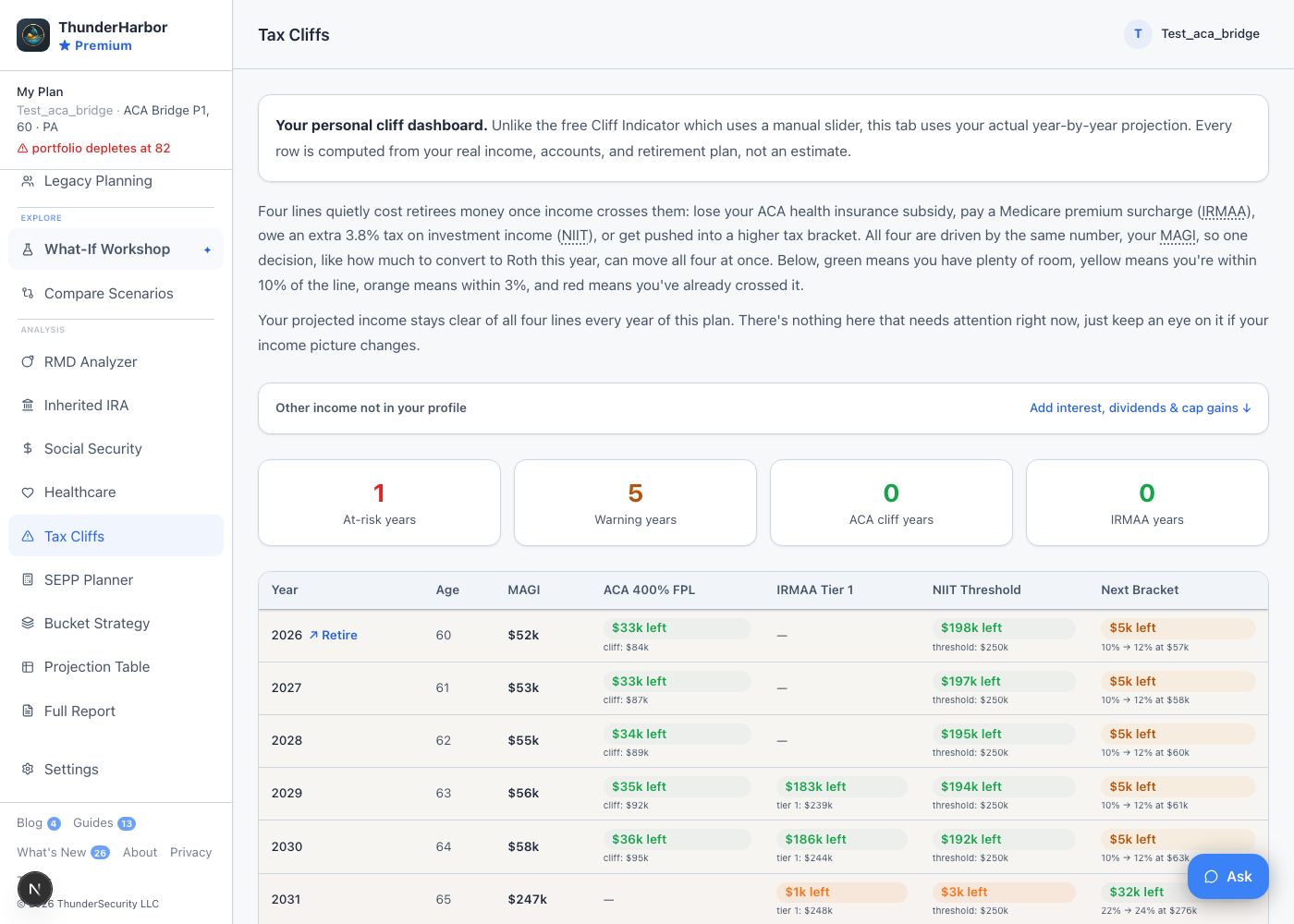
Tax Cliffs is the clearest place to see the guard actually holding, year by year, against every relevant line at once.
Take your pension as a lump sum
This depends on the kind of pension, and the honest answer is not the same for everyone. If yours is a cash-balance pension, there is a real, permanent election for this in Edit Profile, on the Income step: choose lump sum instead of annuitize, and your saved plan rolls the balance into a Traditional IRA the year your pension would have started.
If yours is a standard, formula-based pension (a fixed monthly amount starting at a set age), there is currently no permanent setting anywhere in the app to convert it into a lump sum. What-If Workshop has a “Pension: Lump Sum vs. Annuity” card that lets you compare the two side by side, but it is explicitly a preview. It never changes your saved plan.
If you are actually taking the cash now, that is a different situation from either of the above: log it as a one-time event on the On Track Free tab (see the next section), tagged as ordinary income. The after-tax amount lands in your taxable brokerage balance and gets taxed that year, which is the correct treatment for cash in hand rather than a tax-free rollover.
Report military retirement pay, VA disability, or TRICARE
There is no dedicated military tab. Go to Edit Profile, on the Income step, and open the military and veterans benefits card. From there you can flag a pension as military retirement pay (which changes its state tax treatment and how survivor benefit costs are calculated), enter VA disability for either spouse with its own cost-of-living adjustment, and turn on TRICARE with Prime or Select.
Turning on TRICARE is a bigger switch than it looks. It replaces ACA marketplace modeling everywhere in the app, not just on Healthcare. Tax Cliffs, Roth Strategy, RMD Analyzer, and every ACA-related guard all skip the ACA subsidy math entirely for a TRICARE household, since it is not the relevant coverage type.
Add a windfall: a home sale, a business sale, severance, or an inheritance
Go to On Track Free, scroll to Future Income, and add a one-time event. You give it a description, a year, and an amount, then pick how it is taxed: capital gains, ordinary income, tax-free but still counted for IRMAA and ACA, or no tax impact at all. The last option is for money you already owe no tax on, like an inherited brokerage account with a stepped-up basis, or a cash gift.
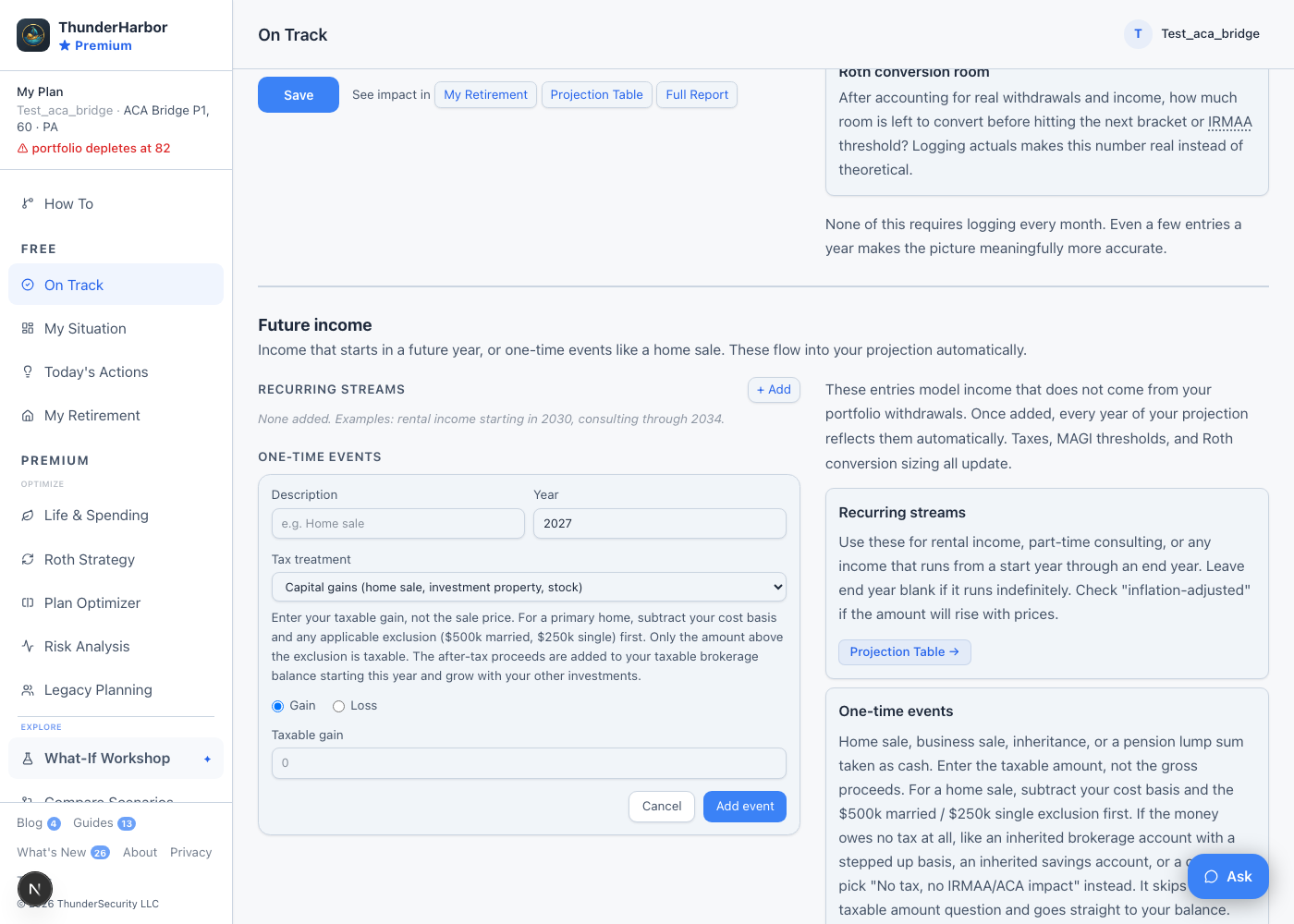
Once added, it flows into every year of your projection automatically: taxes, MAGI, and Roth conversion room all update, and it shows up as its own column on Tax Cliffs and Projection Table.
Model income that grows at its own rate, like deferred comp
Go to On Track Free, scroll to Future Income, and add a recurring stream. Every stream grows before it starts, at your plan's inflation rate by default. Enter a different rate instead if the source grows at its own pace, a deferred comp or 409A account still invested while it waits to pay out is the clearest example, the balance earns whatever return the plan credits, not general inflation.
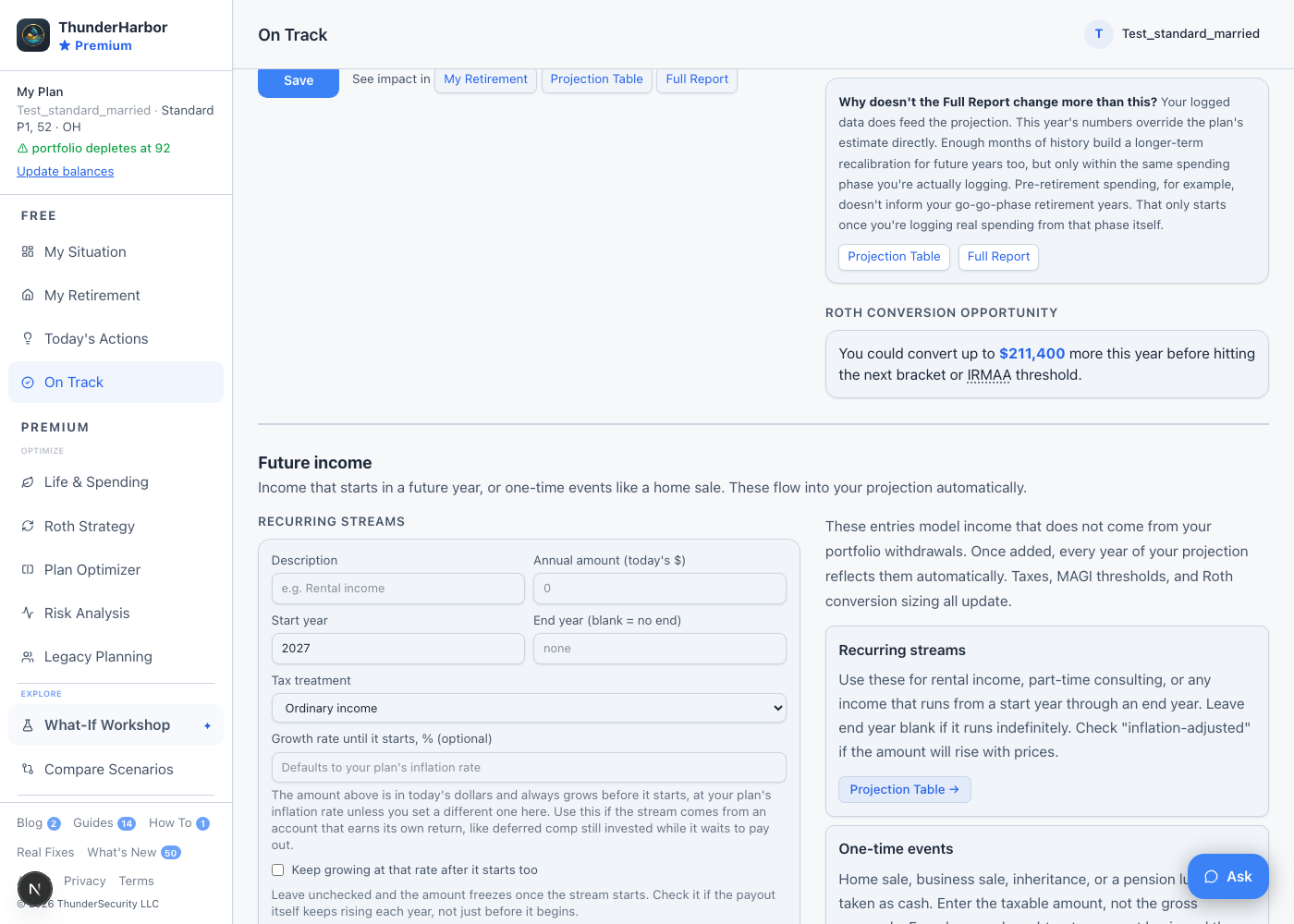
The checkbox is a separate choice. Leave it unchecked and the amount freezes in nominal terms once the stream starts. The growth rate only applies to the years before that. Check it and the amount keeps growing at that same rate for as long as the stream pays out.
Log part-time income, or mark that you have stopped working part-time
Each month's box on On Track Free wants just that month's actual income, not a running year-to-date total. Log $800 for August if that is what you earned in August. The app annualizes whatever is logged, based on how many months you have entered, to estimate the current year's total and feed your tax and Medicare surcharge numbers. Once enough months build up across more than one year, the same logged history also gradually recalibrates the part-time income assumption used for future years, so the plan leans on what you actually earned instead of only the original estimate.
To say you have stopped working part-time entirely, go to Life & Spending Premium and turn off “I might work part-time in early retirement.” That zeroes part-time income in every future year immediately, it does not wait for logged months to catch up. Leave the toggle on and just lower the dollar amount instead if you are still working, only less than before.
Account for an IRA you already inherited, or expect to inherit
The Inherited IRA Premium tab shows the distribution schedule, but the account itself gets added under Edit Profile, on the Money step. You set the beneficiary type (spouse, non-spouse, disabled, chronically ill, minor child), the year of death, and whether the original owner had already started RMDs. This same form works for an inheritance you have not received yet: enter the year of death as a future year and today's expected balance, and the account activates in your projection exactly then, with the real 10-year or stretch schedule applied from that point.
This only applies to a retirement account (a traditional or Roth IRA, or a 401k) someone is leaving you. A future inheritance that is cash, a brokerage account, or other property is a completely different case, covered next.
Plan for a future inheritance that is not a retirement account
Use the same one-time event form on On Track Free described above, with the year set to when you expect to receive it and the tax treatment set to “no tax impact.” That is the correct bucket for an inherited taxable brokerage account, savings, or a cash gift, since those come with a stepped-up cost basis and owe nothing when you receive them.
Getting this split wrong has a real cost. A $200,000 inherited traditional IRA logged as a one-time ordinary-income event gets taxed as a single lump sum in the year it arrives. The same $200,000 logged correctly on the Inherited IRA setup gets spread across its real 10-year (or stretch) distribution schedule, which is usually far less expensive. Match the entry to what the money actually is, not just to how big the number is.
See what your heirs will owe in taxes
Go to Legacy Planning Premium. You set person 1's age when your heirs inherit (for a couple, usually the second death), how many heirs, each heir's income, filing status, age, and type (most adult children fall under the 10-year rule; a minor child, a disabled or chronically ill person, or someone within ten years of your age can stretch withdrawals over their own life expectancy). It shows what each part of your estate means for them: the traditional balance is taxed as they withdraw it, Roth passes tax-free, the brokerage account gets a stepped-up basis, and an HSA is fully taxable to a non-spouse heir. The heir estimate grows the inherited account during the payout and taxes each year at that year's brackets. A separate card estimates federal estate tax, your state's estate tax if it has one, and inheritance tax where children are charged; add home equity or life insurance as other estate assets so it sees your whole estate. The same heir number appears on the insight card and in Full Report.
Worth knowing plainly: the heir and estate figures are estimates that read your plan's balances and do not change any other tab. The one setting here that does change your plan is the QCD. Turn it on and the projection moves that amount from your IRA to charity every year from the first full year after you turn 70½, counts it toward your RMD, and keeps it out of your income, MAGI, taxes, and IRMAA. Projection Table shows it as its own line. If that giving is already inside your spending number, check the box that says so, or the plan gives twice. Trusts and gifts are not modeled, and state estate figures use one representative rate that you should check against current law.
Change your spending, or when it changes
Go to Life & Spending Premium. This is the single most connected setting in the app: it drives Projection Table, Full Report, Bucket Strategy, Tax Cliffs, and Healthcare all at once, since spending is what sets how much your portfolio has to produce every year.
Take penalty-free withdrawals before 59½
Go to SEPP Planner Premium for a 72(t) schedule, or check Rule of 55 eligibility on the same tab if you left a job at 55 or later. Turning on a SEPP plan does more than add a withdrawal line: it overrides your normal withdrawal order entirely while it is active, so Healthcare, Tax Cliffs, and Projection Table can look different in ways that are not obvious from the SEPP Planner screen alone.
Plan around a spouse's benefits, or one of you passing first
Go to Settings Free and turn on the surviving spouse scenario. It models person 2 passing at the age you set: their salary, pension, Social Security, Medicare, and long-term care stop, their IRA rolls into yours, spending drops by the percentage you choose, and your brokerage account's cost basis steps up. Social Security follows the survivor rules: the larger of the two checks, reduced if you are under full retirement age when they pass, and never less than 82.5% of their full benefit if they had claimed early. Single-filer brackets start the year after the death, and the single IRMAA thresholds two years after that, because Medicare looks at the return from two years back. The same section compares the scenario with the roles reversed, so you can see what happens if person 1 passes first, and offers a survivor benefit comparison for any pension. Full Report shows a three-way comparison (married, widowed, and your actual plan) once this is on. If your household has already changed, the button below the scenario rewrites your profile: single status, the IRAs rolled to you, your partner's pension survivor benefit kept as an income stream, and the basis step-up applied.
Use your HSA for medical costs in retirement
Go to Settings Free and set your HSA deferral. Until the age you choose, the app leaves your HSA balance alone to keep growing; after that, it spends it down against your healthcare costs automatically. The effect shows up on Healthcare and Projection Table.
Preview a different retirement age or scenario without touching your real plan
Go to What-If Workshop Premium. Most scenarios built here (a different conversion strategy, spending level, Social Security age, or state) only ever show up on Projection Table, behind an explicit Baseline/What-If toggle that defaults to Baseline. The one exception is the retirement-age slider at the top, which is shared more widely: Roth Strategy, Bucket Strategy, RMD Analyzer, Executive Summary, and Full Report will all reflect an explored age if you set one, even after you navigate away. Every one of those tabs shows a clear banner when that is happening, with a one-click reset back to your saved plan.
See most of your numbers in one place, year by year
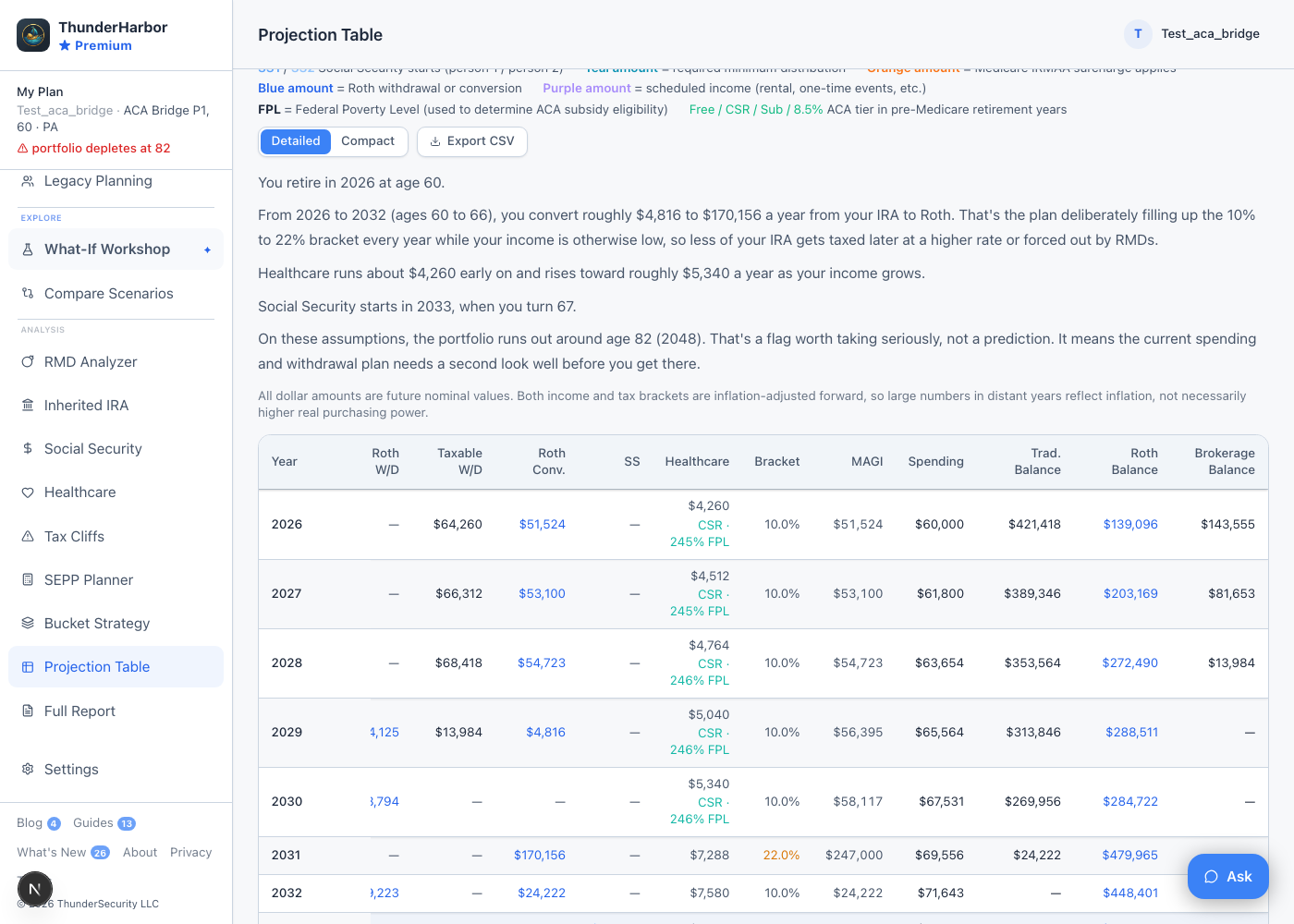
Go to Projection Table Premium. This is the tab with the most detail in the app: your tax bracket, MAGI, healthcare cost, Roth conversions and withdrawals, and every account balance, all by year, in one row-by-row table. It will not tell you why a number is what it is, for that you still go to the specific tab that owns that setting, but if you just want to see most of your numbers laid out year by year, this is the fastest place to look.
Find out when you could stop contributing and still be on track
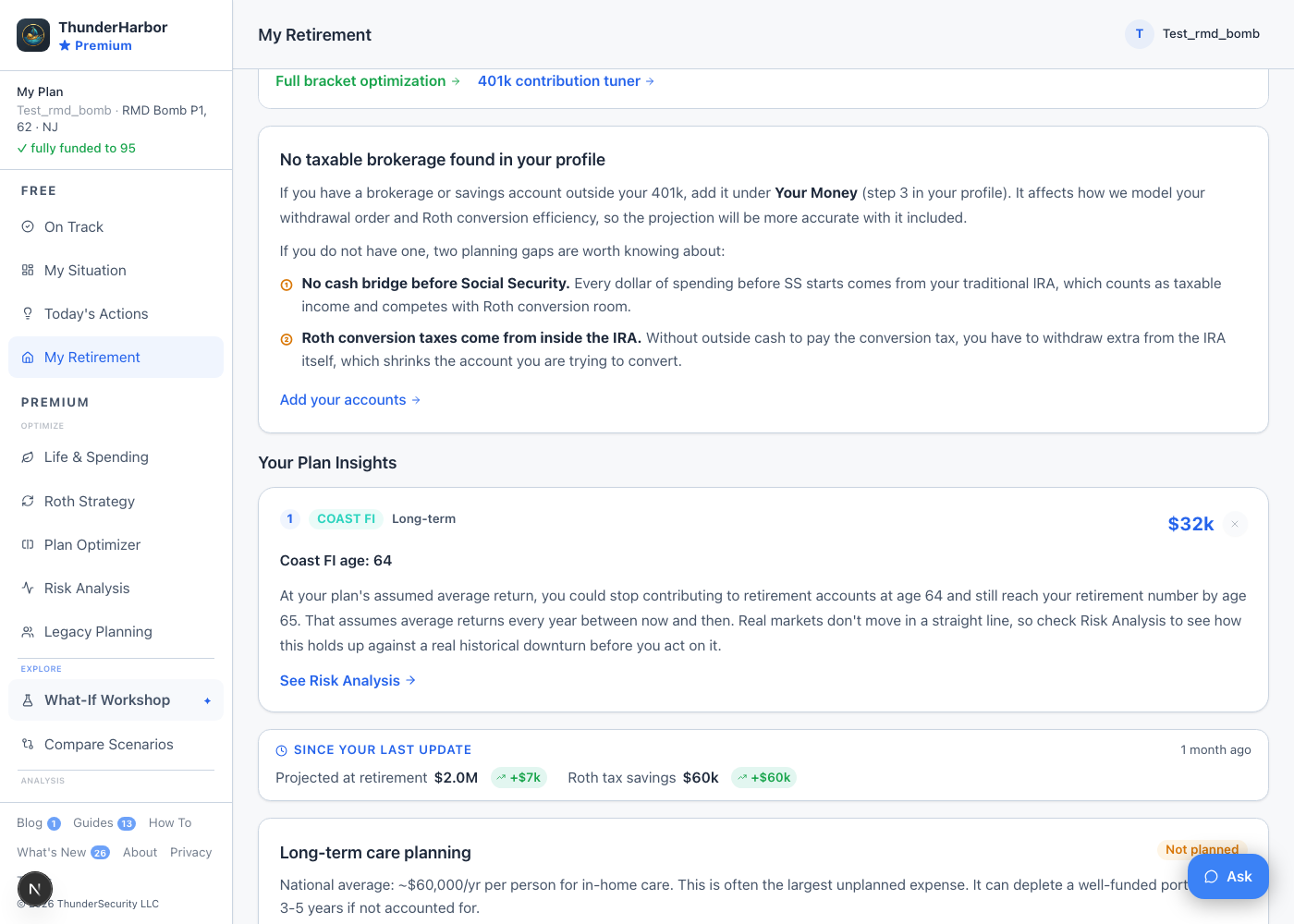
This is your coast FI age: the age you could stop contributing to retirement accounts entirely and still reach your number by retirement, on investment growth alone. It shows up as a card in Your Plan Insights on My Retirement Premium, alongside your other ranked insights. If your plan does not reach a coast age at all, the card says so plainly instead of showing a number that does not exist.
That average-return caveat is not boilerplate. A coast age computed off a smooth average return can look perfectly safe on paper and still leave you short if a real downturn hits in the years right after you stop contributing. That is exactly what the Coast FI Stress Test, near the bottom of Risk Analysis Premium, exists to check. Pick a coast age, the one from My Retirement is the starting default, and run it against 1,000 simulated market sequences to see the real success rate, side by side with your actual plan's success rate at full contributions. A materially lower number on the coasting side is the real risk of stopping that early, not a bug in the tool.
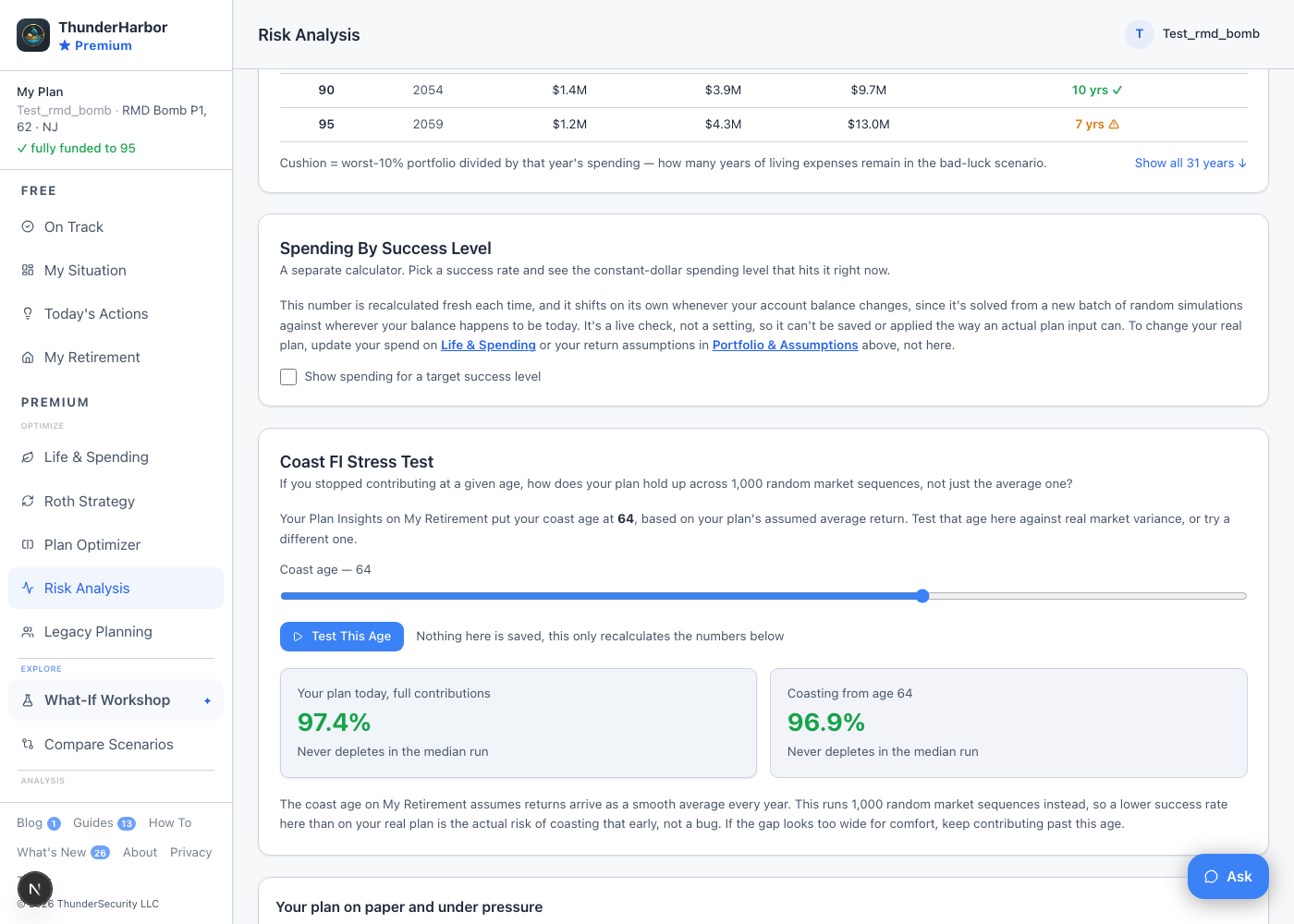
Nothing on that stress test card is saved. It recalculates on click and never touches your real plan. If you just want a rough, no-login estimate before signing up, there is also a free Coast FI Calculator on the public site, a simplified single-rate version of the same idea, without your real accounts or the stress test.
See where a Risk Analysis number shows up elsewhere
Probability of success, the headline number on Risk Analysis Premium, isn't only shown there. It also feeds the “how does my plan hold up under real market stress” sentence on My Situation, My Retirement, and the two views of Full Report, the in-app preview and the printable full analysis. All of them read the same computed result, so if you run a fresh simulation on Risk Analysis (new allocation, new stress scenario, whatever), that number updates everywhere else it appears too, not just on the tab you were looking at.
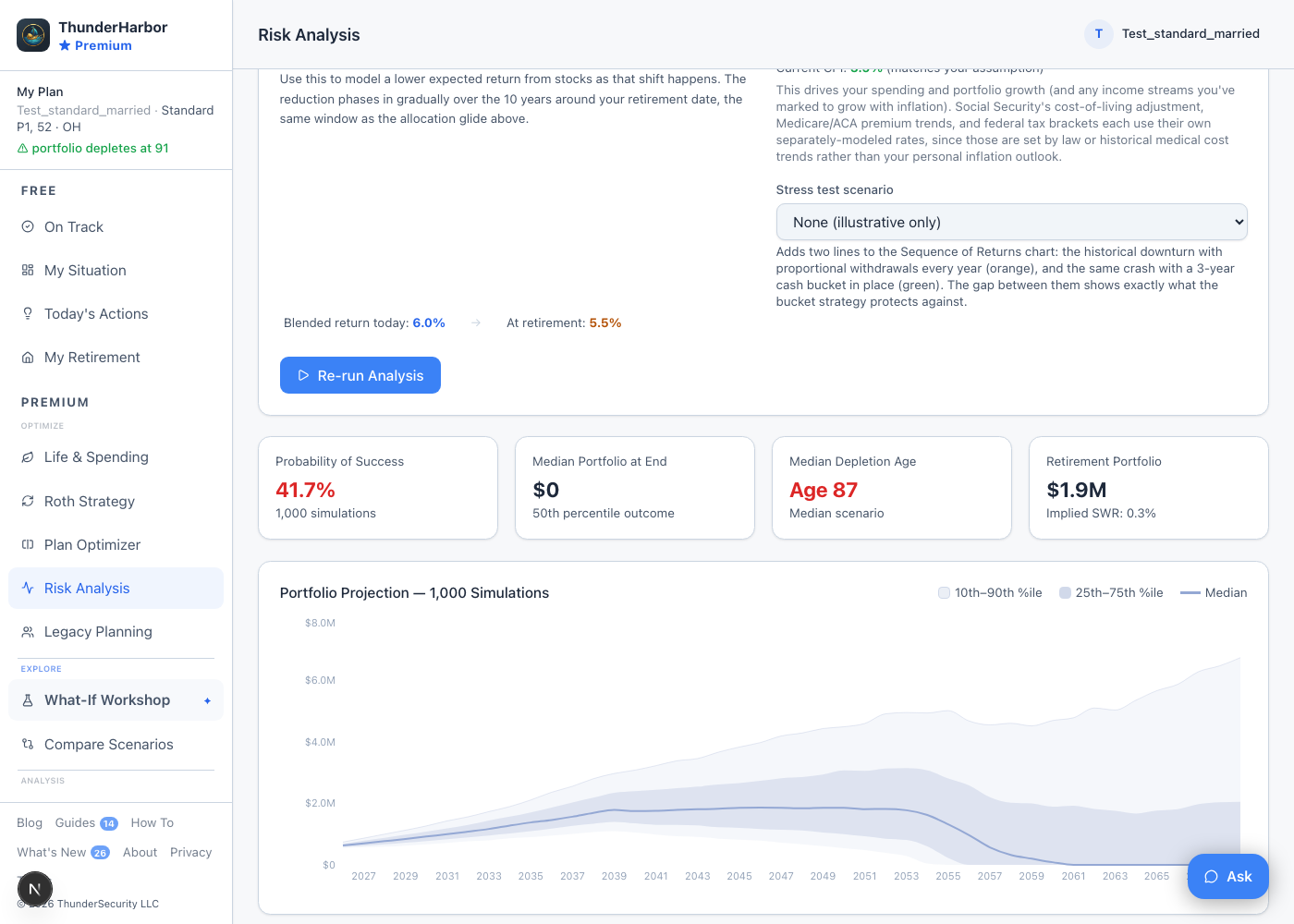
The reverse is also true: change something on a completely different tab, your spending on Life & Spending, a Roth conversion setting, your retirement age, and the next time Risk Analysis runs, it's simulating your updated plan, not the old one. There's no separate copy of your numbers sitting inside Risk Analysis waiting to go stale.
What the rest of the premium tabs actually do
The sections above cover specific tasks. These tabs are not really about one task each, they are worth knowing exist. All of them are part of the premium plan.
Plan Optimizer Premium
Covered above under 401k, 403b, and 457(b). This is the tab that decides how much of each contribution goes to Roth versus pre-tax, per account, per person.
Risk Analysis Premium
Every other tab assumes your inputs are correct. The return rate you picked, the inflation rate, how long you live. Risk Analysis is the one place that stress-tests those assumptions instead of trusting them, running 1,000 Monte Carlo simulations against your actual plan instead of one straight line. You get a probability of success, not a single number, plus a Safe Withdrawal Rate table showing how that probability changes at different spending levels. Bucket Strategy and What-If Workshop tell you what to do. Risk Analysis tells you how much confidence to have that it works out.
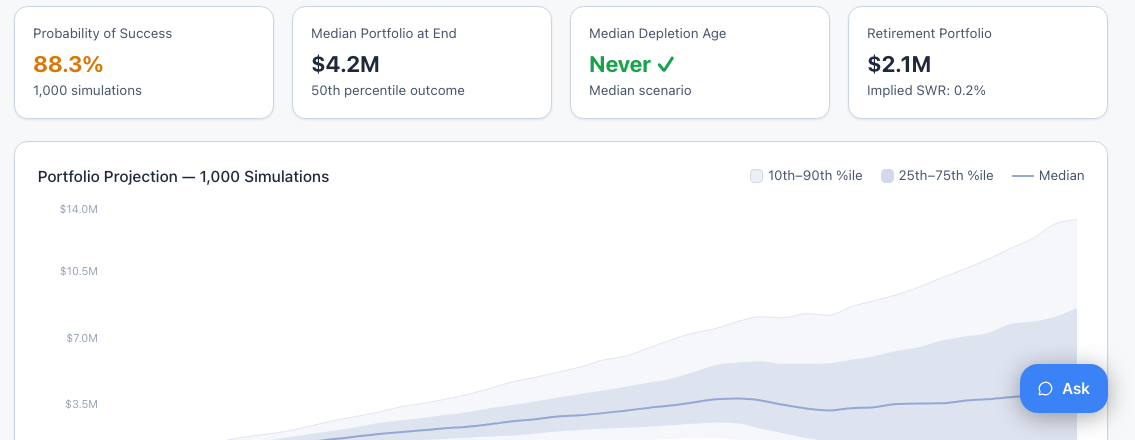
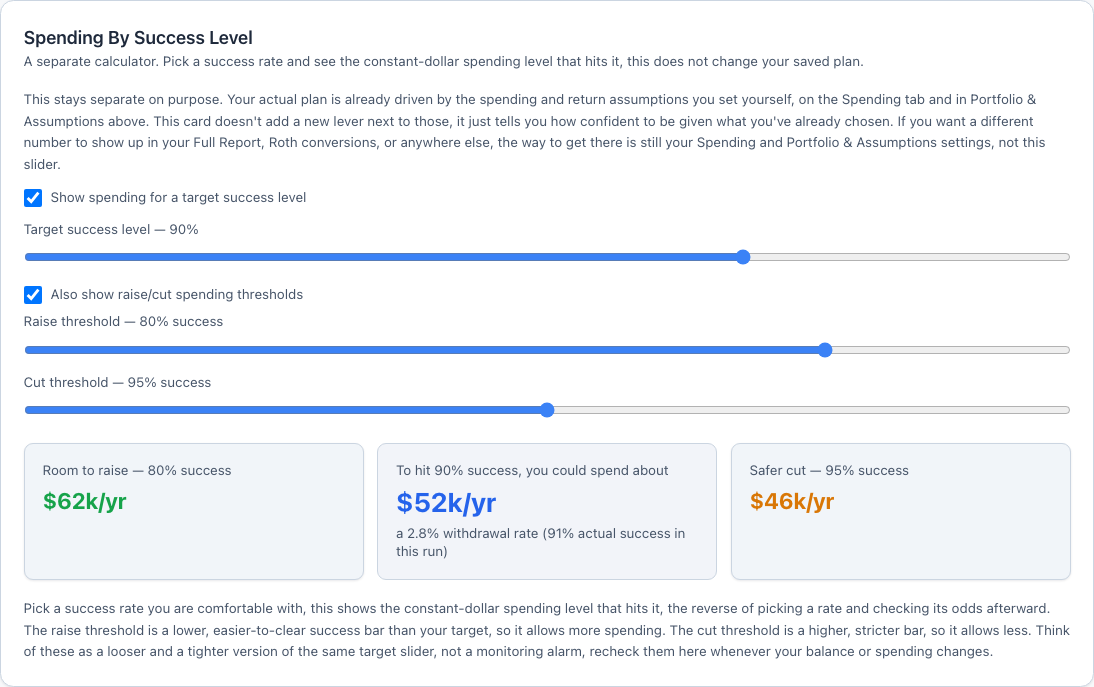
Past the simulation and the tables, there is a separate card called "Spending By Success Level." It lives on its own down there on purpose, apart from the portfolio settings above it, because it does not feed into your Full Report, your Roth conversions, or anything else in the app. It is a standalone calculator, not a plan setting. Your actual plan is still driven by what you set on the Spending tab and in Portfolio & Assumptions, this card just reads confidence off of those, it does not change them.
Inside that card is a toggle for the opposite direction from the SWR table above. Instead of picking a withdrawal rate and checking its odds, pick the success rate you want and see the spending it implies. It is easy to expect a higher percentage to mean more room to spend. It means less. A 95% target has to survive the worst 5% of the 1,000 simulated markets, not just the average one, so it demands a lower, safer withdrawal rate than an easier target does. On one real test plan, a 90% target showed about $18k/yr. Raising it to 95% dropped that to $16k/yr, a real cut, because the plan now has to clear a harder bar.
A second toggle in the same card adds two more numbers around that target, a raise threshold and a cut threshold, so you are not just looking at one spending level in isolation. The raise threshold is an easier bar than your target, so it clears at a higher spending level. The cut threshold is a harder bar, so it only clears at a lower one. On the same test plan, a 90% target implied about $51k/yr. Loosening the bar to 80% raised that to $60k/yr. Tightening it to 95% cut it to $47k/yr. Same portfolio, same market simulations, three spending levels for three different comfort levels. This is a snapshot, not an alert. It does not watch your account and ping you when a threshold is crossed, you come back and recheck it yourself whenever your balance or spending changes meaningfully.
Compare Scenarios Premium
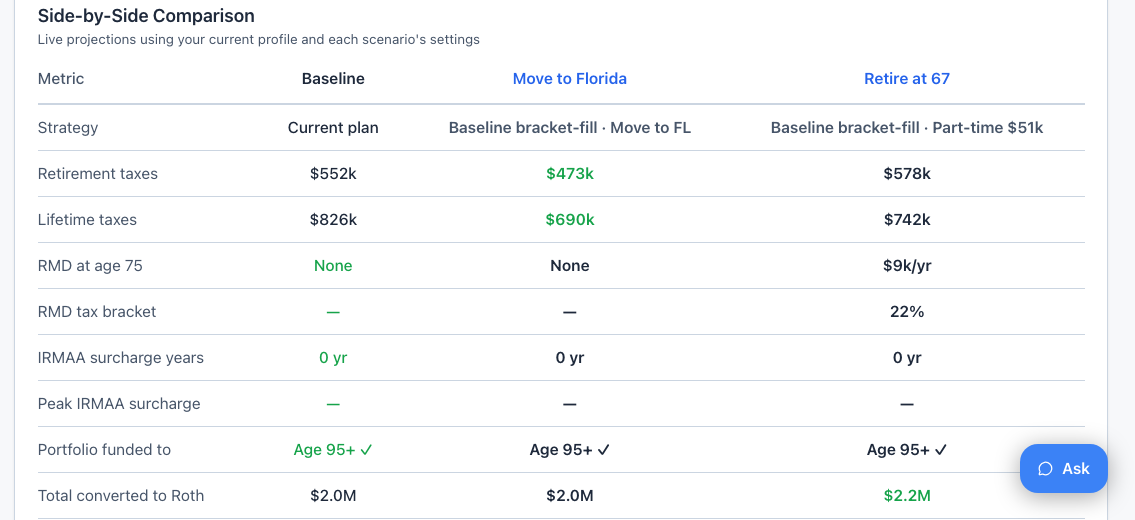
What-If Workshop builds one what-if at a time. Save up to three of those scenarios from inside the Workshop, then come here to see them side by side against your actual saved plan, year by year, not just at the final number. Useful for a genuine fork in the road, retiring at 62 versus 65, for example, where you want the full trajectory of both instead of a single comparison stat.
RMD Analyzer Premium
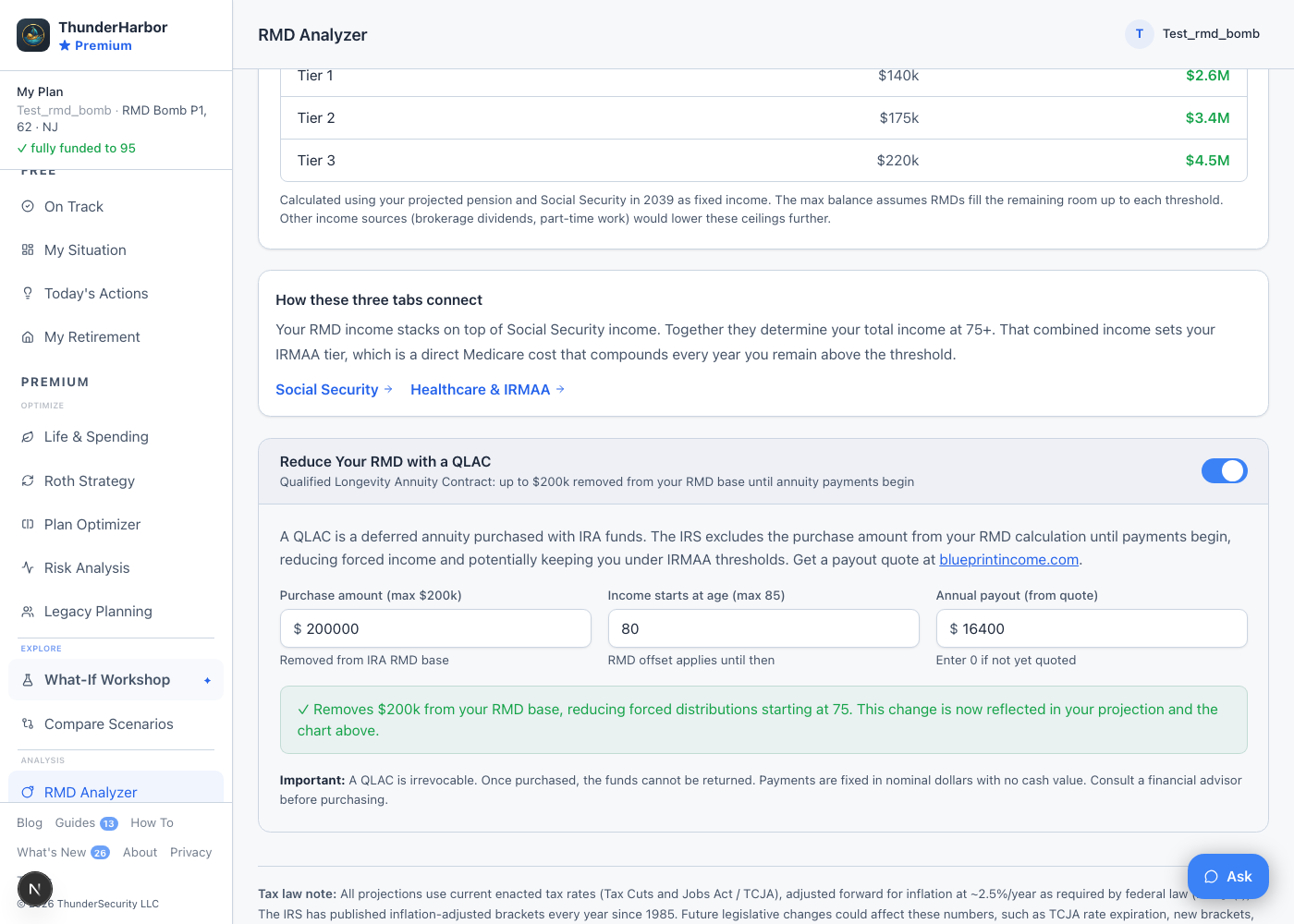
See your required withdrawals by year before they happen, not after. It applies your real RMD start age under SECURE 2.0 (72, 73, or 75, depending on your birth year) and shows the actual dollar amount forced out of each account, usually the clearest way to see a coming tax problem before it arrives. Large pre-tax balances left to compound for decades tend to produce a visible spike here well before the first RMD year actually hits.

The same tab is also where you model a QLAC (Qualified Longevity Annuity Contract), a toggle further down called "Reduce Your RMD with a QLAC." The IRS lets you carve up to $200k out of a traditional IRA into a deferred annuity, and that amount is excluded from your RMD calculation until the annuity payments actually start, up to age 85. Turn it on and enter a purchase amount, the age payments begin, and the annual payout from an insurer quote, and it feeds straight back into your RMD schedule and the rest of your projection.
Bucket Strategy Premium
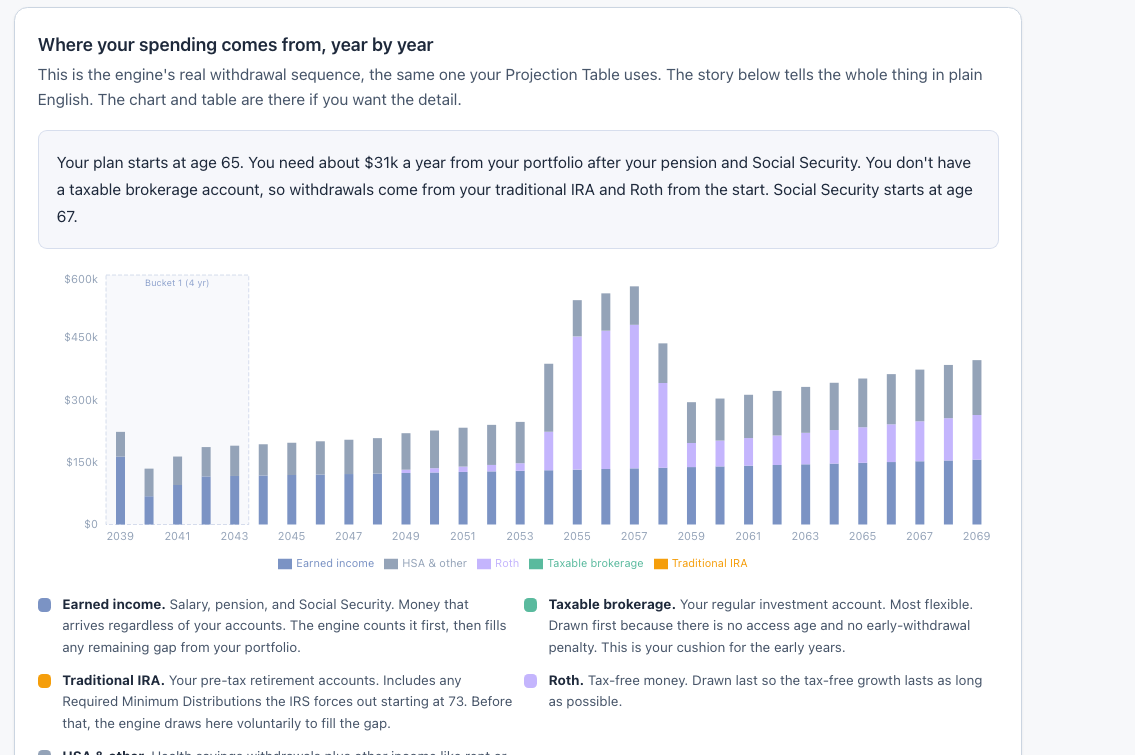
See your accounts grouped by when you will actually spend them instead of by account type. The core of it is the Bucket 1 dial, how many years of spending to keep in safe, liquid assets before touching growth investments. A leaner 3-year buffer covers every bear market since 2000 and maximizes long-term growth. A longer buffer trades some of that growth for peace of mind. When markets drop, you draw from Bucket 1 and leave Bucket 2 and 3 alone. That is what actually protects a retirement plan from sequence-of-returns risk, being forced to sell growth assets at a loss just to cover spending.
Full Report Premium
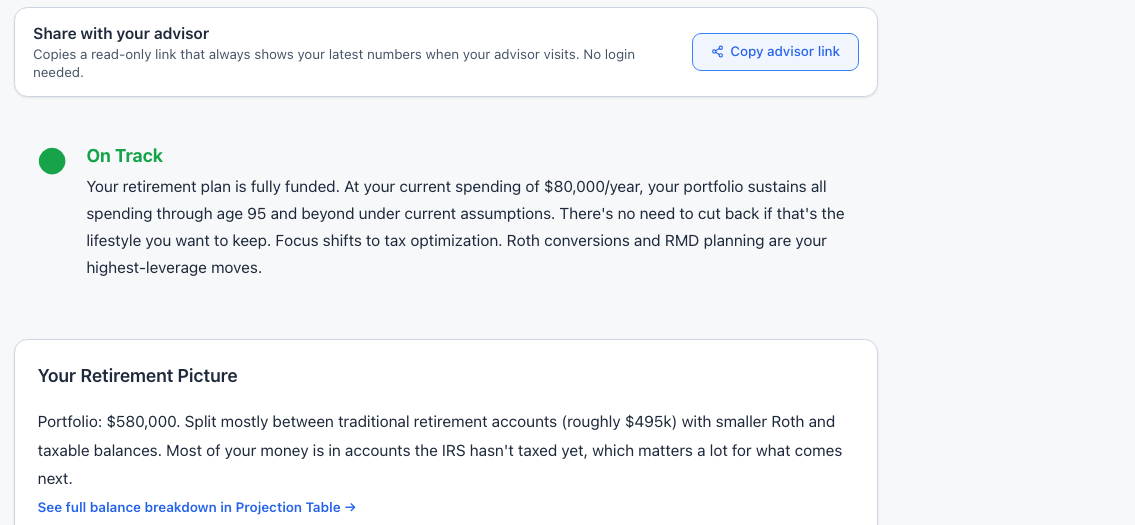
The long-form version of your plan, the kind you would hand to a spouse or a financial advisor. It pulls the highlights from every other tab into one document instead of numbers spread across 20 screens, covering your lifetime tax bill, portfolio runway, and Social Security verdict in plain English. A share button generates a read-only link that always reflects your latest numbers, so an advisor can open it without a login. If the widow scenario is on, this is the only tab that shows all three versions side by side (married, widowed, and your actual plan).
Beyond the tabs: what else is in here
A few things in ThunderHarbor are not tabs at all, and are easy to miss if nobody points them out.
Calendar Free
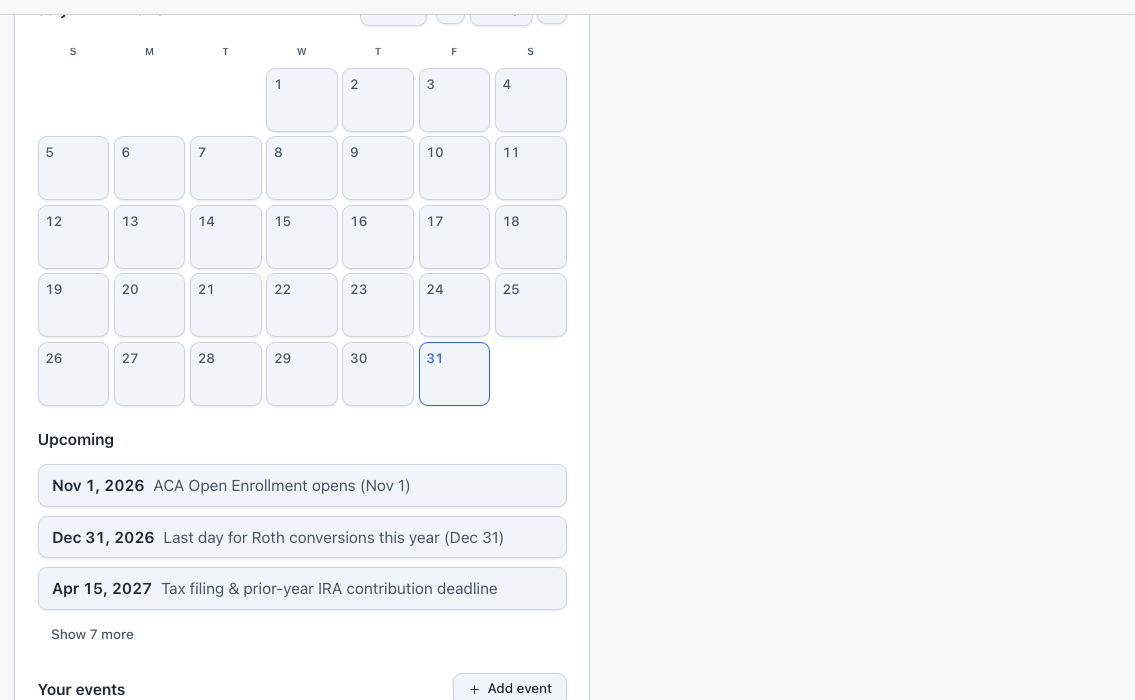
Your Calendar lives inside Settings, not its own tab, which is genuinely easy to miss. It auto-generates the real dates that matter for your plan. Each spouse's retirement date, Social Security start, Medicare eligibility, RMD start age, the annual Roth conversion and tax-filing deadlines, and the Medicare and ACA open enrollment windows all come from your actual saved plan, not generic dates. Add your own events on top of it, and download the whole thing as a calendar file, or subscribe to it directly in Google, Apple, or Outlook so it stays updated automatically. If My Situation shows a small number badge, that is the Calendar telling you something is coming up in the next 30 days.
Blog, What's New, and Guides Free
Three more things live in the footer at the bottom of the sidebar, and all three are free to read whether or not you have an account. What's New is a running changelog of what actually shipped recently and where to find it in the app. Guides are longer, general retirement-planning explainers, not specific to this app. Roth conversion strategy or how RMDs work are examples, the kind of thing worth knowing regardless of what software you use. Blog is shorter and more topical.
Things the app decides automatically, and where to check the result
Not everything is a setting you go find. Some of these happen automatically once a condition is true, and the only "control" is checking the tab where the effect shows up.
| If this is true… | …this happens automatically | Check the result on |
|---|---|---|
| Your birth year sets a 1960+ RMD age | Forced withdrawals start at 75, not 73 | RMD Analyzer |
| Your beneficiary type is disabled, chronically ill, or a minor child (an EDB) | Stretch distributions apply instead of the 10-year rule | Inherited IRA |
| A SEPP plan is active | Normal withdrawal ordering is overridden entirely | Healthcare, Tax Cliffs, Projection Table |
| TRICARE is turned on | ACA subsidy math is skipped everywhere | Healthcare, Tax Cliffs, Roth Strategy |
| Conversion mode is set to Manual | ACA and IRMAA guards no longer cap the amount | Tax Cliffs (no warning appears on Roth Strategy itself) |
| A cash-balance pension is set to lump sum | The balance rolls into a Traditional IRA at pension start age, no immediate tax event | Projection Table (future RMDs will be larger) |
| The surviving spouse scenario is on and the modeled spouse has died | Filing status flips from married to single the year after; single IRMAA thresholds apply two years after that; survivor Social Security and the basis step-up apply from the death year | Full Report (shows all three versions), Projection Table |
| QCDs are on in Legacy Planning | From age 71 the amount leaves your IRA to charity each year, counts toward the RMD, and is excluded from income and MAGI | Projection Table (QCD line under the IRA withdrawal), Tax Cliffs |
One setting that is easy to lose track of
If you told us during onboarding roughly how much of your taxable brokerage balance is unrealized capital gains, that number quietly affects how withdrawals get ordered between your taxable, traditional, and Roth accounts for the rest of your plan. There is currently no Settings screen to go back and change it after onboarding. If your taxable balance has grown or shrunk a lot since you signed up, that estimate can go stale without you noticing. We are aware this is a real gap and plan to give it a proper home on the Settings tab.
Not financial advice
This page explains how the app works. Nothing here constitutes financial, tax, or legal advice. Always consult a qualified professional before making significant financial decisions.
Still not sure where something lives?
The Ask button inside your plan can point you to the right tab using your own numbers.
Social Security Premium
Go here for the claiming-age question on its own. Three lines show cumulative lifetime income if you claim at 62, 67 (Full Retirement Age), or 70, with a break-even age marking where a later line overtakes an earlier one. For a married couple, the higher earner's choice matters more than it looks. It sets the survivor benefit for the rest of your life, which is why this tab generally pushes the higher earner toward 70 even when the lower earner claims early. There is a second layer most people miss too. Claiming early fills your low-income years with guaranteed income right when that window was your cheapest opportunity for Roth conversions and ACA subsidies. Waiting keeps that door open longer.